
The Odoo Apps store has several modules that add AI to Helpdesk. A typical one adds three fields to each ticket (an issue summary, an analysis and a solution), fills them with AI from the ticket's description and messages, finds similar tickets from the past, suggests a solution based on them, and makes the solution field mandatory before a ticket can be closed. It usually needs your own OpenAI key and runs on a schedule.
Odoo 20, released in September 2026, ships with AI built in. We wanted to know whether a company can get the same result with standard Odoo only, which matters a lot if you're on Odoo Online, where Apps store modules can't be installed at all. So we rebuilt every feature on an Odoo 20 database, step by step, and tested it with real tickets. Studio is used for the fields. Everything else is menus and settings, plus two lines of code for one optional check.
The company in the screenshots is a made-up home services business in Dubai doing pest control, AC duct cleaning and water tank cleaning. Its customers and tickets are invented.
What we set out to rebuild

- Find past tickets similar to a new one.
- Suggest a solution based on how those tickets were solved.
- Fill an Issue summary, an Analysis and a Solution on every ticket, automatically, from the description and the conversation.
- Update them when the customer writes again, without erasing what an agent typed.
- Stop a ticket from being marked as solved until the solution is written.
What you need
- Odoo 20 Enterprise with the Helpdesk app, on Odoo Online, Odoo.sh or your own servers.
- Odoo's AI app, which brings similar tickets, AI prompts on tickets and AI steps in automation rules.
- Odoo Studio for the three fields. Studio puts the database on the Custom plan, the same plan that includes Odoo's agentic AI. Our guide to customizing Odoo Online explains what that plan change costs.
You don't need an OpenAI account or key of your own. Odoo runs the AI and counts the usage against its AI credits, so keep an eye on them once the automations are on.
Step 1: Turn on similar tickets
Open Helpdesk › Configuration › Helpdesk Teams, pick the team and scroll to the AI section. Tick Look for Similar Tickets, then choose how far back to look (we used the last 365 days), the AI agent the team uses, and the Similarity Threshold. We kept the default of 0.45. A higher number shows fewer, closer matches.

Odoo then indexes the team's tickets by meaning with a scheduled job in the background, so a ticket about "small brown cockroaches in the cabinets" matches one about "cockroaches back in the kitchen", even though the words differ. Once that's done, each ticket shows a Similar button with the number of matches and how many of them are closed.

This replaces the add-on's similar ticket search completely, with no setup beyond these four settings.
Step 2: Ask for a solution based on similar tickets
Odoo 20 also has a ready-made prompt on tickets: Find a solution based on similar tickets. Open a ticket and click the AI icon in the top bar. The AI chat opens on that ticket and offers the prompt as a button. The AI reads the matching solved tickets and writes the agent a short plan, citing what worked before. In our test, a new complaint about cockroaches ten days after treatment got the right answer, taken from two old tickets. The customer's treatment includes a free follow-up visit, the technician places gel bait in the cabinet hinges and behind the fridge, and the customer shouldn't spray insecticide for two weeks because spray keeps cockroaches away from the bait.

It then offers to draft the reply to the customer. The agent reads it, edits it and sends it. Nothing goes to the customer on its own.
There's a second ready-made prompt, Summarize the chatter conversation, which is handy for long tickets passed from one agent to another.
Step 3: Add the three fields with Studio
Open any ticket and click the Studio icon. Drag three Multiline Text fields onto the form and name them Issue summary, Analysis and Solution. We grouped them under a heading called AI analysis, above the description, so agents see them first. Close Studio.
Odoo 20 can also attach an AI prompt directly to a field, so that the field fills itself. In our tests on Odoo 20 those fields didn't fill reliably from the ticket's messages, so we used automation rules, which ran every time and are easier to check.
Step 4: Fill the fields with AI when a ticket arrives
Turn on developer mode, open Settings › Technical › Automation Rules (Studio has the same list under Automations) and create a rule on Helpdesk Ticket with the trigger On create. Add three actions of type Update Record, choose Update with AI, and pick one field for each.

Each action has a prompt. Insert the ticket's fields into it from the prompt editor (they show as highlighted names in the screenshot), so the AI reads the real ticket. We gave each prompt the title, the customer's description and the messages, then one instruction.

These are the three instructions we used. Short prompts that tell the AI to use only the ticket's content gave us the most reliable answers.
- Issue summary: "In two sentences, say what the customer's problem is. Write for a support colleague. Use only the information above."
- Analysis: "In up to three sentences, give the most likely cause of the problem and what the support team has already checked or tried. If nothing has been tried yet, say so. Use only the information above."
- Solution: "If the messages show a fix that was suggested or done, describe it in up to three sentences. If no fix appears in the messages, answer exactly: No solution yet."
The last instruction matters. Without it, the AI will often invent a believable fix for a ticket nobody has worked on yet, and an agent could take it as fact. With it, the Solution field only shows a fix once the ticket really has one.
On our database the three fields were filled about eight seconds after a new ticket was created.
Step 5: Update them when the customer writes again
Create a second rule on Helpdesk Ticket with the trigger On incoming message and the same three actions. When the customer replies, Odoo reads the new message and refreshes the summary, the analysis and the solution.
Here is a ticket after the customer wrote back to confirm the fix. The analysis now records what the technician did, and the solution describes the fix the customer confirmed.

To keep what agents type, add a condition to the rule. In Apply on, choose records where the field is empty or still says "No solution yet." If you want the summary and the analysis to keep updating while the solution stays protected, put the Solution action in a rule of its own with that condition.
The add-on we compared with also has buttons to run the AI again on one field. In standard Odoo, an agent can ask the ticket's AI chat for a fresh summary, or, in developer mode, you can create the same Update with AI step as a server action and add it to the ticket's Actions menu.
Step 6 (optional): Require a solution before a ticket is solved
Create a third rule with the trigger Stage is set to and the stage Solved. Add one action of type Execute Code with these two lines:
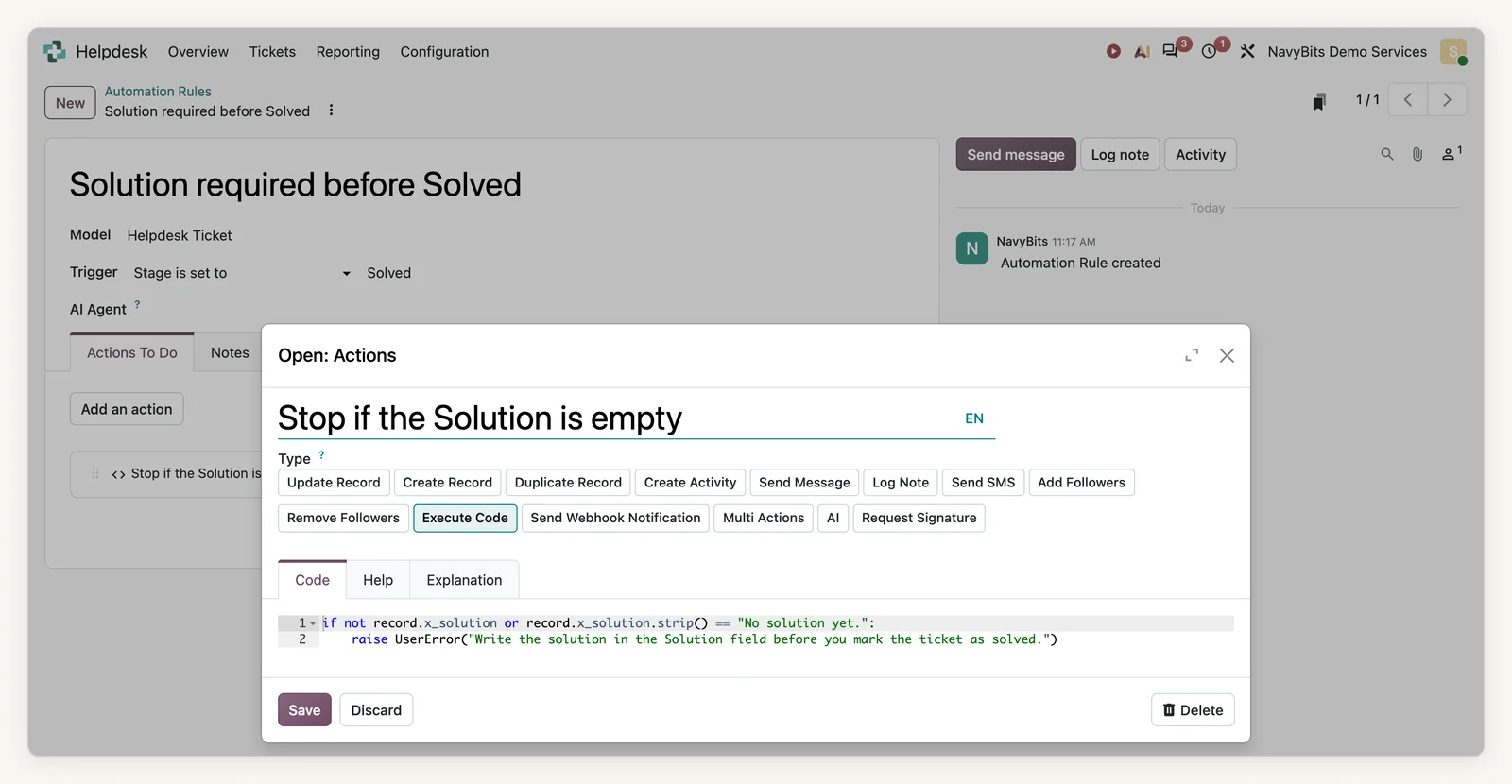
if not record.x_solution or record.x_solution.strip() == "No solution yet.":
    raise UserError("Write the solution in the Solution field before you mark the ticket as solved.")
Use the technical name Studio gave your field (ours was x_solution). Now, when someone moves a ticket to Solved without a solution, Odoo refuses and shows the message.

These two lines are Python, and on Odoo Online Python written inside the database is billed monthly per 100 lines of code, rounded up. This one check counts as a full block of 100 lines. If you'd rather avoid the fee, Studio can make the Solution field required only when the stage is Solved, with no code at all. That rule only applies when the ticket is saved from its form, though, so a ticket dragged to Solved in the kanban view still gets through. The coded rule catches every route.
What we learned
- History makes the difference. Similar tickets and suggested solutions are only as good as the solved tickets behind them. Ask agents to write the fix in a note before closing a ticket, which is exactly what Step 6 enforces.
- AI can be wrong. The fields are a draft for the agent. In our tests they were accurate, but a ticket with a vague description gets a vague summary. Agents should read them before they rely on them.
- Triggers drive the cost. Every AI step uses credits. Running on creation and on incoming messages is enough. A rule that fires on every edit would use far more.
- Data leaves the database. Ticket text is sent to the AI service Odoo uses. Tell your team, and keep passwords or card numbers out of tickets.
- Upgrades are covered. The fields and automation rules are Studio work, which Odoo's upgrade service converts. The two lines of code are covered too, as part of the code fee. Still test them on a copy before each upgrade.
Standard Odoo 20 or an add-on?
For a company on Odoo Online, the question doesn't arise, because add-ons can't be installed there. For everyone else, standard Odoo now covers what these add-ons do, uses Odoo's own AI without a separate key, and follows Odoo's upgrades. An add-on can still make sense when you need something Odoo doesn't offer, such as a particular AI provider, an on-premise model or a feature beyond this list, but then you're also taking on its maintenance at every upgrade.
How NavyBits can help
- Assess. We look at how your support team works today and tell you which Odoo 20 AI features fit, what to automate and what it will cost in AI credits and plan.
- Build. Our Odoo business solutions team sets up the teams, similar tickets, fields, prompts and rules, and tests them with your real tickets.
- Maintain. Our Odoo support team keeps the prompts accurate as your services change, and checks every rule before each upgrade.
FAQ
Does Odoo 20 Helpdesk have AI built in?
Yes. With the AI app, Odoo 20 Helpdesk finds similar tickets, suggests a solution based on solved ones, summarizes the conversation and can draft replies. Automation rules can also fill any field with AI.
Do I need an OpenAI API key for AI in Odoo Helpdesk?
No. Odoo 20's AI features run through Odoo and use Odoo's AI credits. You don't need your own key.
Can I install Helpdesk AI modules from the Apps store on Odoo Online?
No. Odoo Online runs standard Odoo only. To get these features there, use the built-in AI with Studio and automation rules, as shown in this guide.
How do I make a field required only at a certain stage in Odoo?
Studio can make a field required when a condition is met, such as the stage being Solved, but only in the form. To block every route, including drag and drop in the kanban view, use an automation rule on the stage with a short Execute Code check.
Does the Execute Code check cost extra on Odoo Online?
Yes. Python written inside the database is billed monthly per 100 lines of code, rounded up, at the price in your quote. Two lines count as one block of 100.
Try it on your own tickets
If your support team spends its time re-reading long tickets or answering the same questions, book a free 30-minute call. Show us a few of your tickets and we'll tell you how Odoo 20's AI would handle them and what it would take to set up.